Assigning and closing
Claim, assign and close a conversation
When it is clear who holds a conversation, two people never answer the same customer. Claiming it, handing it to a teammate and closing it with an outcome all happen in the same header.
Before you start
- An open conversation in the inbox
Steps
Open the conversation and click the assignee button
The button reads Assign when nobody holds it, and shows the owner's name when someone does. Claim takes it yourself; the names below hand it to a teammate.
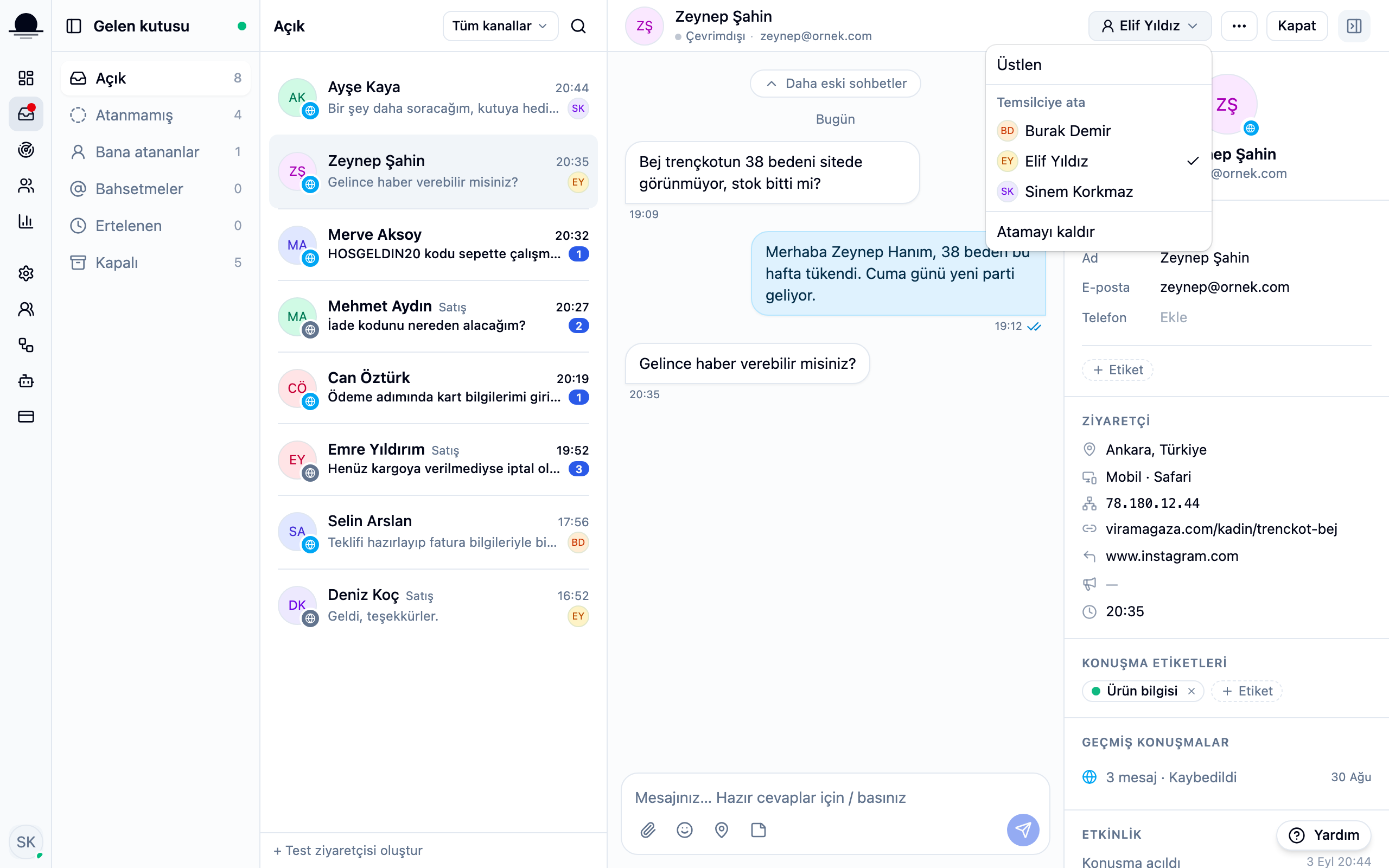
The Unassigned filter on the left collects everything nobody has picked up. Starting the day there is the simplest way to keep anyone from waiting.
Close it when the work is done
The close dialog asks for two things: the outcome and at least one tag. Both feed the reports, so what your customers ask about and how much of it turns into a sale comes from these choices.
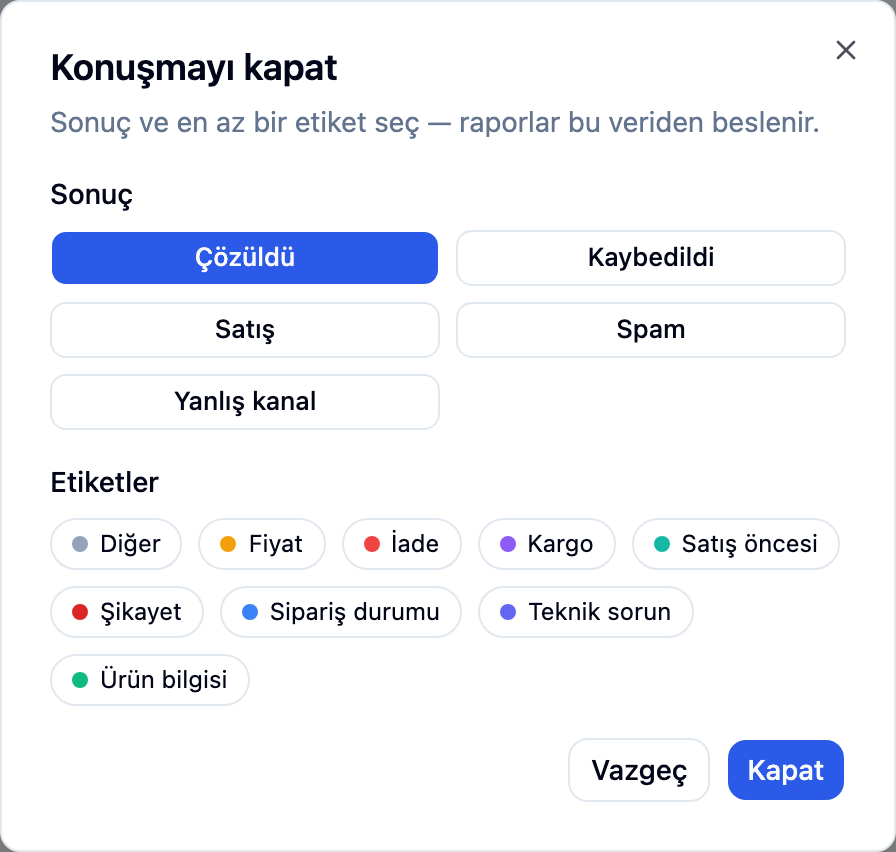
Closed conversations stay in the Closed list
If the customer writes again on the same thread, it reopens on its own and returns to the inbox. Closing is not deleting; the history stays on the contact card.
Frequently asked
Related guides
No account yet?
The free plan covers 2 users and 200 conversations a month. No credit card.