Notifications
Set your notifications and availability
The sound on a new message, the counter in the tab title and desktop notifications are yours alone. Availability decides whether visitors see you as online.
Before you start
- Being signed in to the panel
Steps
Open Notifications under Profile
Click your avatar at the bottom left, then Profile, then Notifications. These choices are yours only and never touch a teammate's settings.
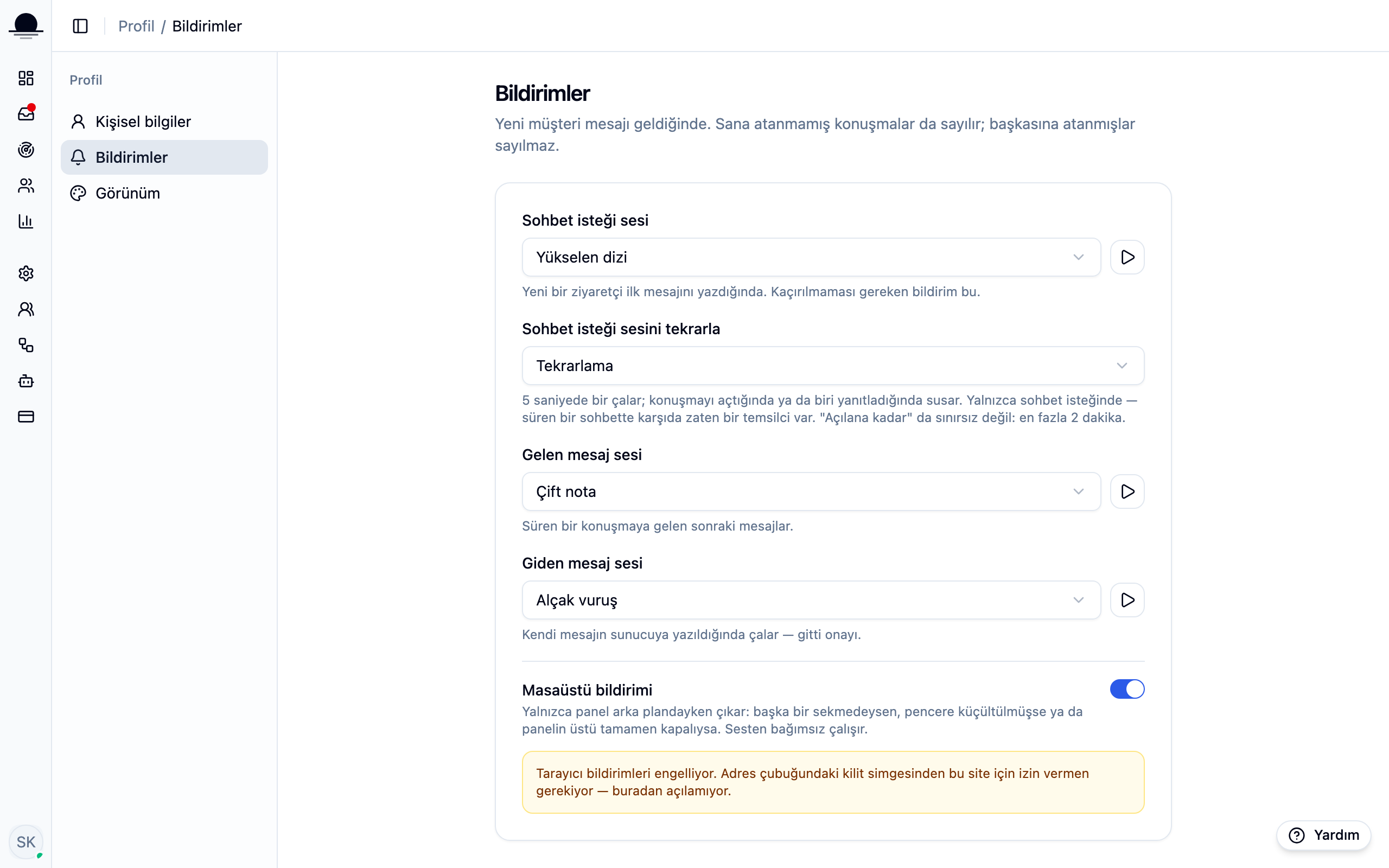
Desktop notifications also need the browser's permission. If you once denied it, flipping the switch is not enough; you have to restore the permission from the site settings in the address bar.
Choose your availability
The menu on your avatar offers Available and Busy. While available, new chats reach you too; on Busy the widget stops counting you as online.
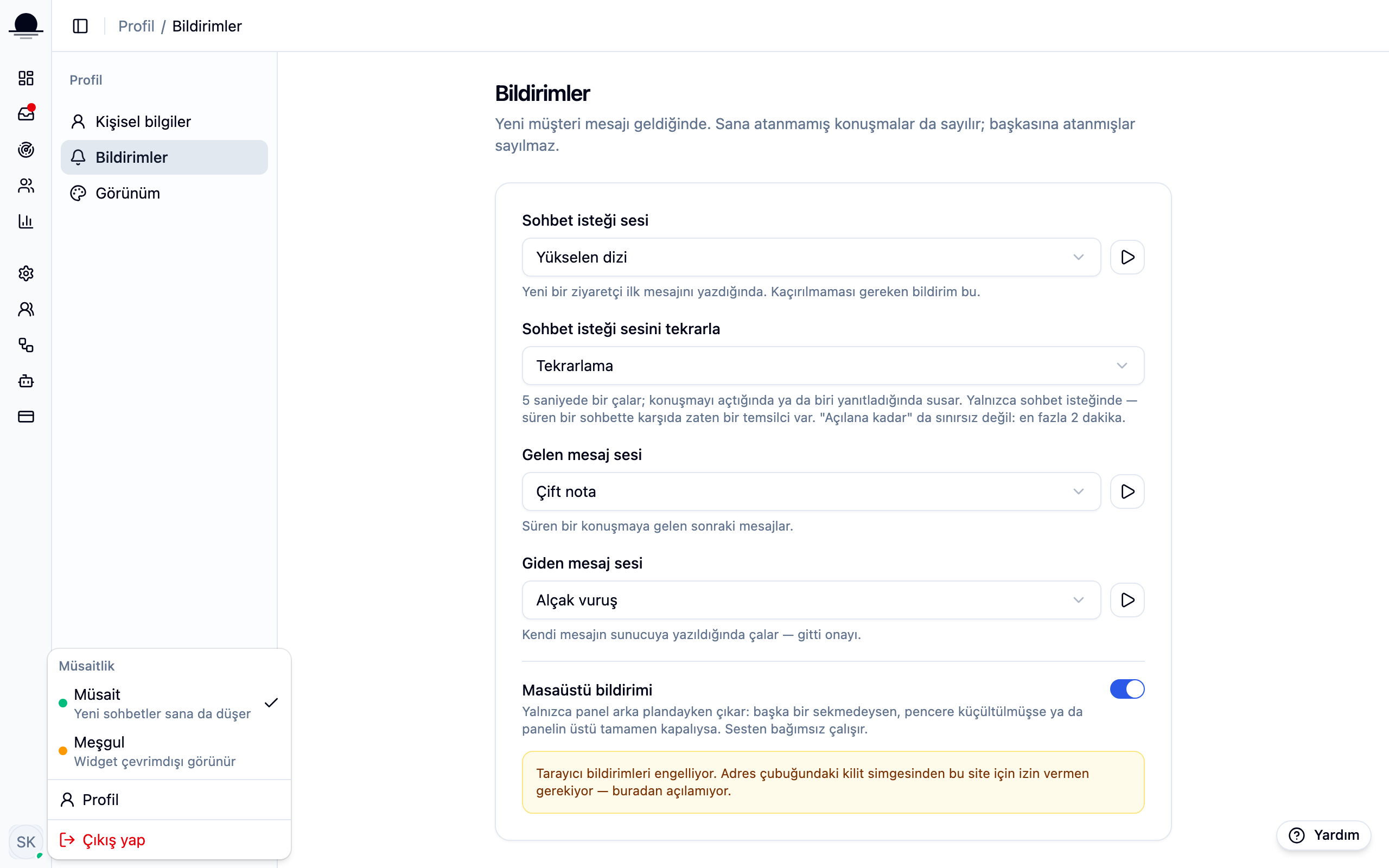
For lunch or a meeting, Busy beats editing your working hours. When nobody on the team is available, visitors get the contact form.
Frequently asked
Related guides
No account yet?
The free plan covers 2 users and 200 conversations a month. No credit card.