Connect your WhatsApp number
Pair the number already on your phone by scanning a QR code, the way WhatsApp Web works. No Business API application, no approval queue, no per-message fee.
Before you start
- The phone that holds the number, in your hand
- Admin access in the panel
Steps
Open WhatsApp numbers under Settings
Add number walks you through the risks first, then asks for a name. The name is optional but useful: it is what the inbox shows to say which number a conversation came in on.
Scan the code from your phone
In WhatsApp on your phone, go to Settings → Linked devices → Link a device and scan the code. Lunachat appears as a linked device, just like WhatsApp Web. The code is valid for a few minutes; a new one is generated when it expires.
You keep using the number on your phone. The same conversation shows up in both places.
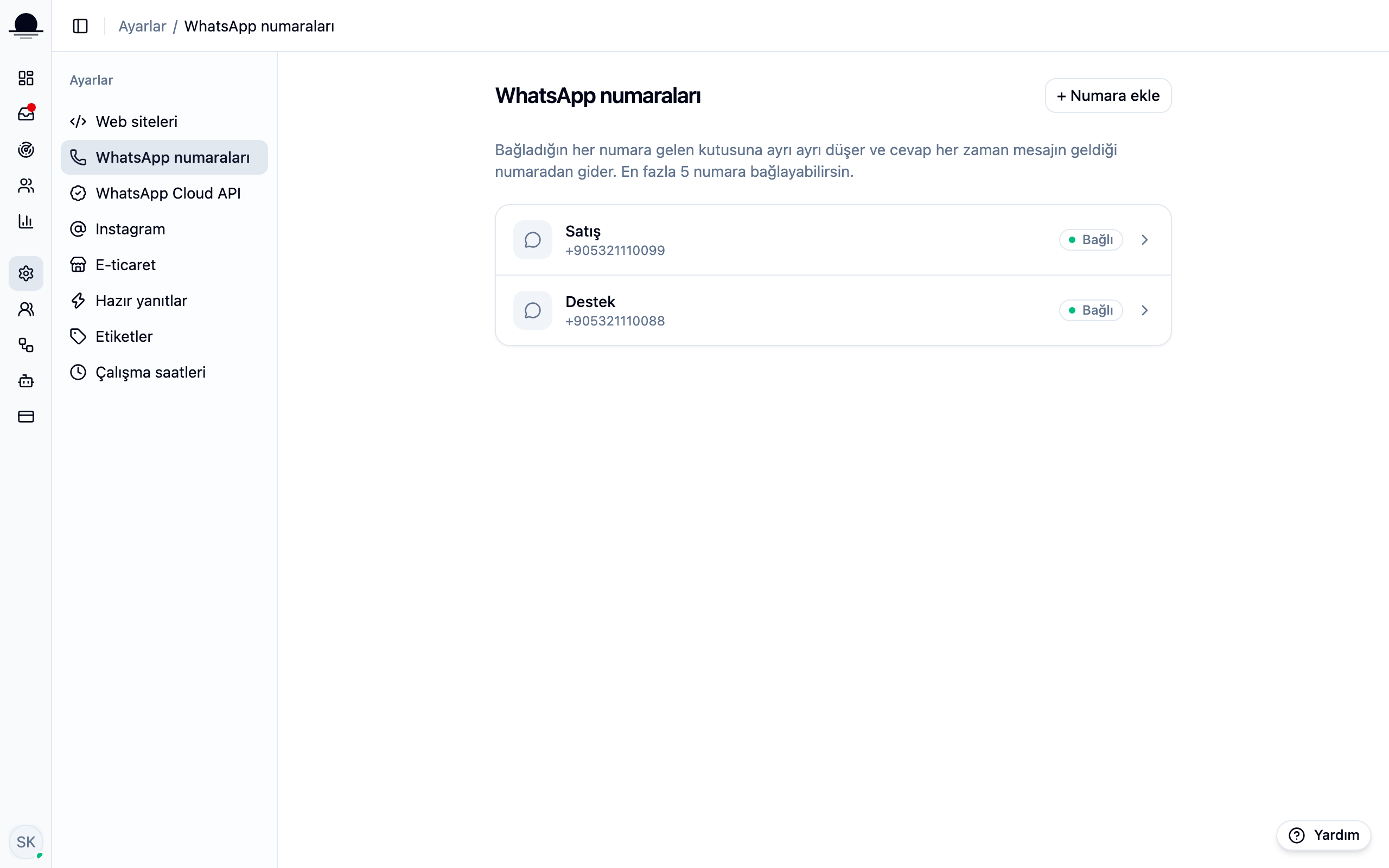
Check that the number reads Connected
Once paired, the number shows as connected in the list. The next message to it lands in the inbox next to your web chats.
Group messages do not reach the inbox. Outgoing messages are capped at 20 a minute, counted per number, a limit that exists to keep your account out of trouble.
Repeat for a second number
A workspace can hold up to five numbers. They run independently, so one dropping does not stop the others from receiving messages. The inbox shows which number a conversation arrived on and your reply goes out from that same number, so a customer never gets an answer from a number they never wrote to.
If sales and support have separate numbers, the picker above the conversation list narrows the inbox to one of them.
Frequently asked
Related guides
No account yet?
The free plan covers 2 users and 200 conversations a month. No credit card.