Contacts
Know your customer from the contact card
The card beside a conversation says who you are talking to and what you talked about before. A web visitor and a WhatsApp number merge into one person.
Before you start
- At least one conversation in your inbox
Steps
See everyone in one place under Contacts
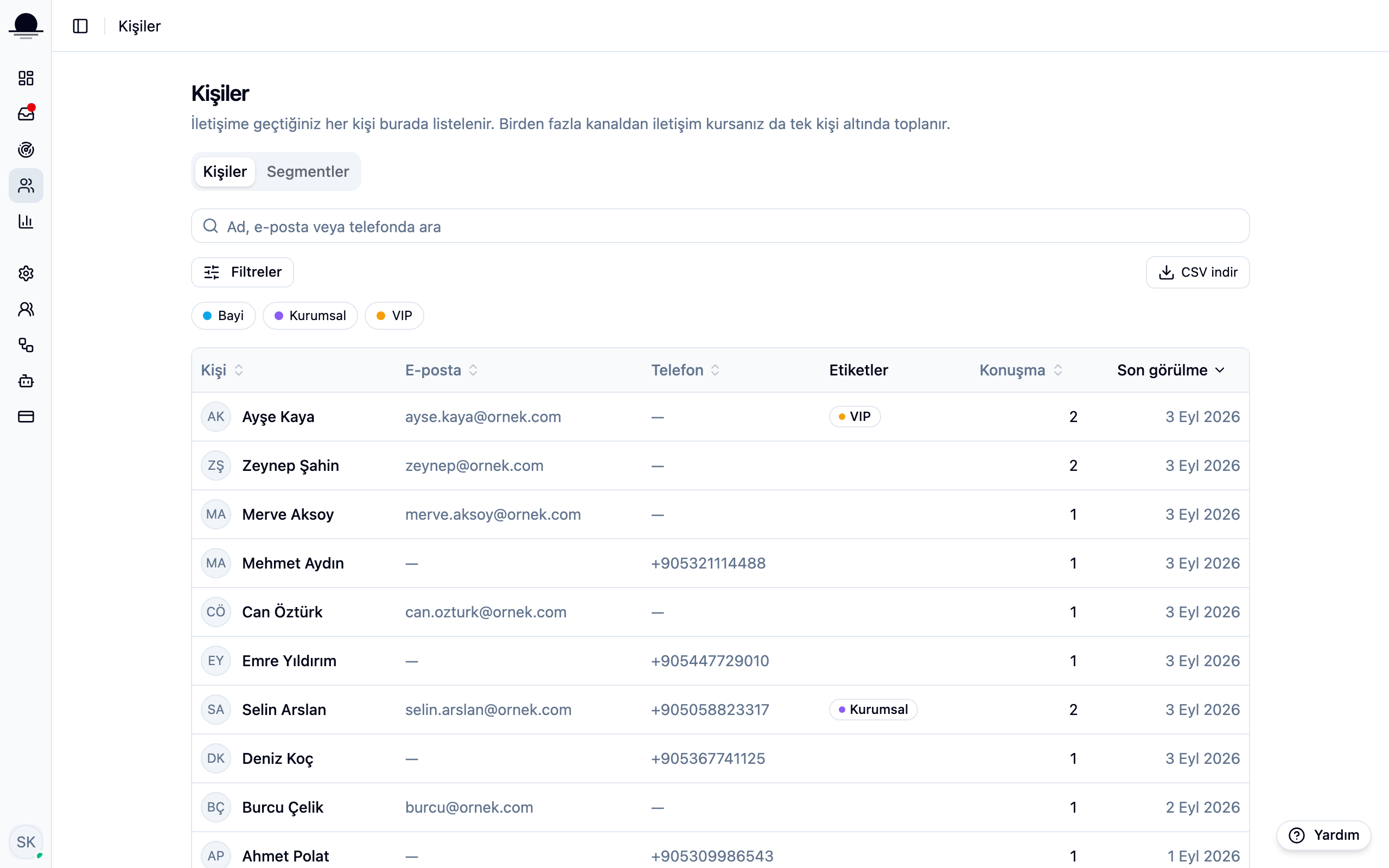
Contacts in the left menu lists everyone who has written to you. Search covers names, emails and phone numbers, and the list can be sorted by who wrote last.
Open a contact and read the history
The card shows what is known about the person and every conversation they have had with you. Click one and the whole thread opens, so you never ask the same question twice.
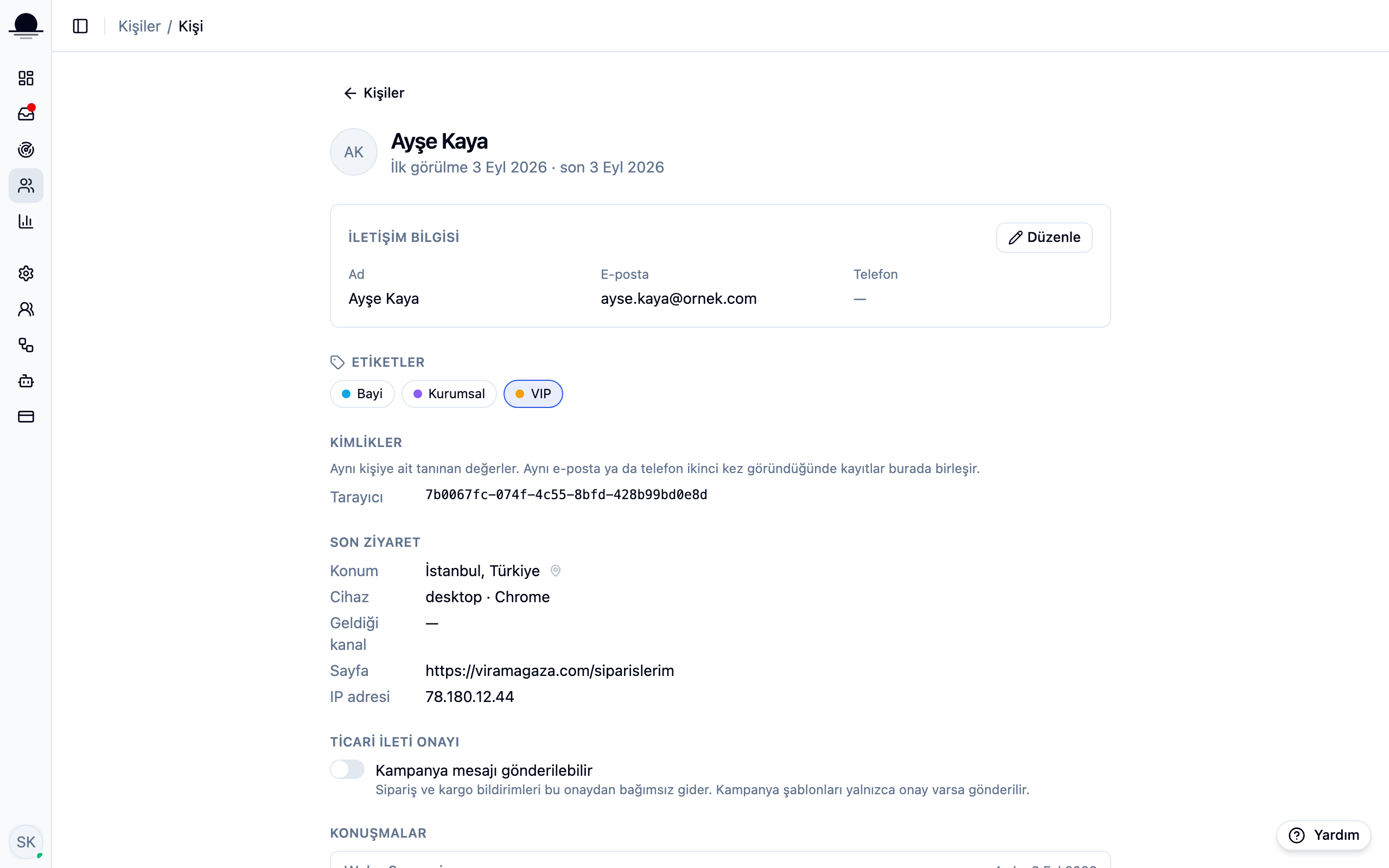
When the same person writes on the web and on WhatsApp, both identities merge into one card. All it takes is their leaving a number or an email once.
Fill in what is missing yourself
Name, email and phone can be edited from the card. Contact tags live here too: reseller, business, VIP outlive the conversation and greet you on the next one.
Frequently asked
Related guides
No account yet?
The free plan covers 2 users and 200 conversations a month. No credit card.