Canned responses
How to create and use a canned response
Shipping times, refund policy, payment options: save the answer you type dozens of times a day once, then call it with a slash in the inbox. Two minutes to set up, one second to use.
Before you start
- A Lunachat account with panel access (admin or agent)
- The text of an answer you write often, such as shipping times
Steps
Open Canned responses under Settings
Click the gear icon at the bottom of the left menu, then Canned responses. The list shows what is already saved, each shortcut, and how many times it has been used.
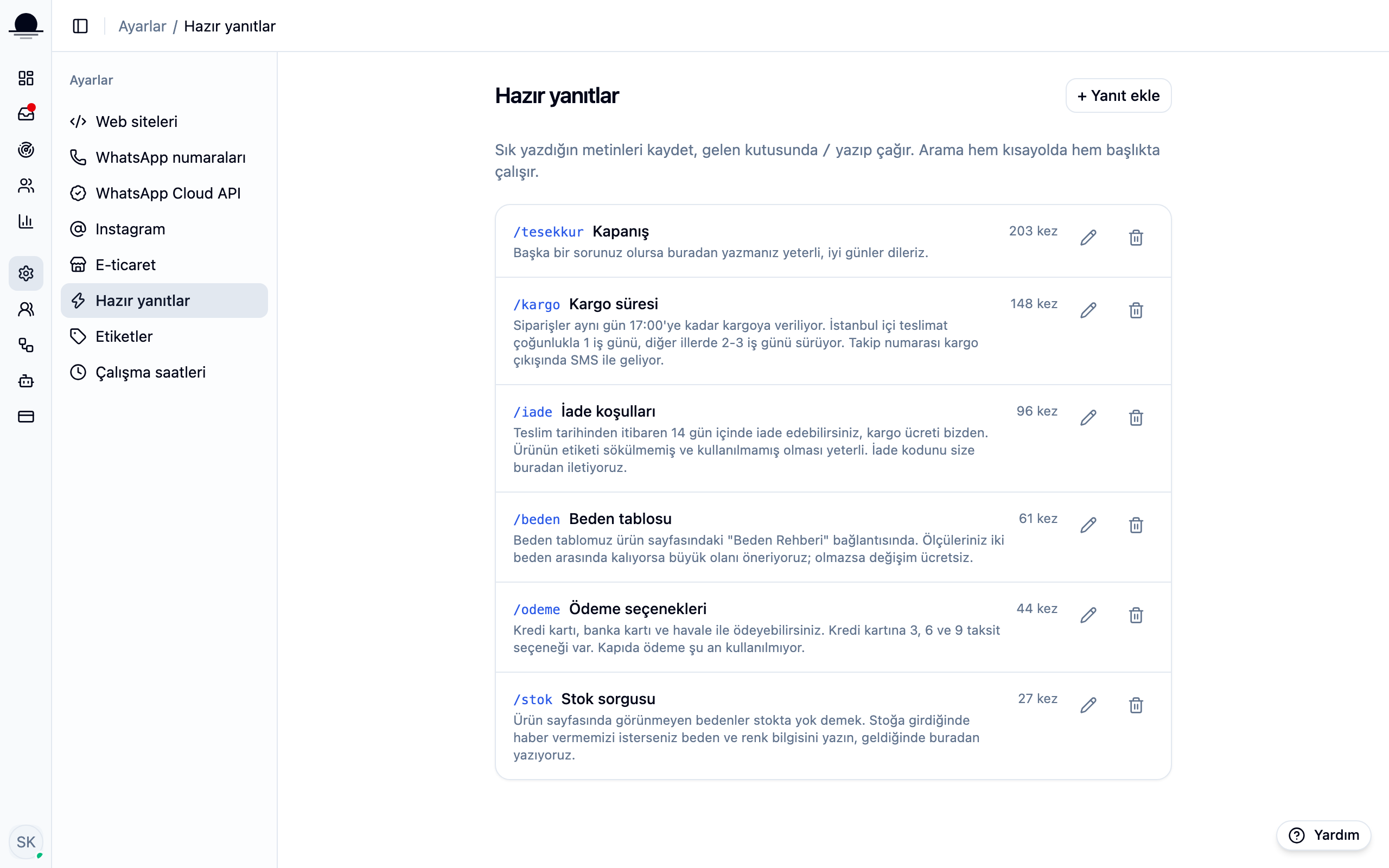
The usage counter tells you which answers earn their place. One that has sat at zero for months is either badly worded or answers a question nobody asks.
Hit Add response and fill in three fields
The button at the top right opens a small window. The shortcut is the word you will type to call it, the title is the name you see in the list, and the message is the text your customer receives.
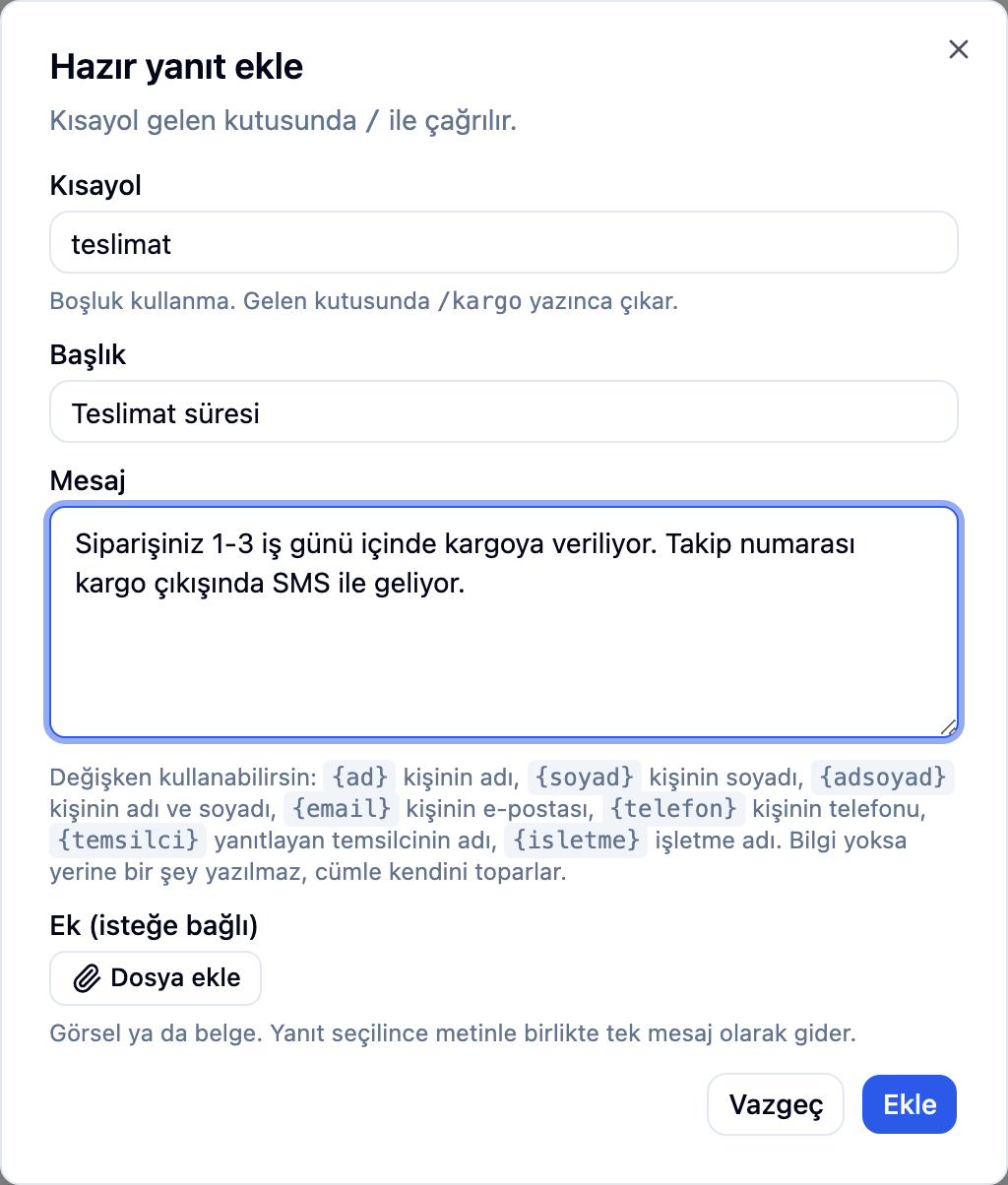
Keep the shortcut to one short word, no spaces. Whatever comes to mind first is the right one; nobody types
/delivery-times-infotwice.Type
/in the inbox to call itOpen a conversation and type
/followed by the first letters of the shortcut. The list narrows as you type, and it searches both shortcuts and titles, so you can find a response by its name when the shortcut escapes you.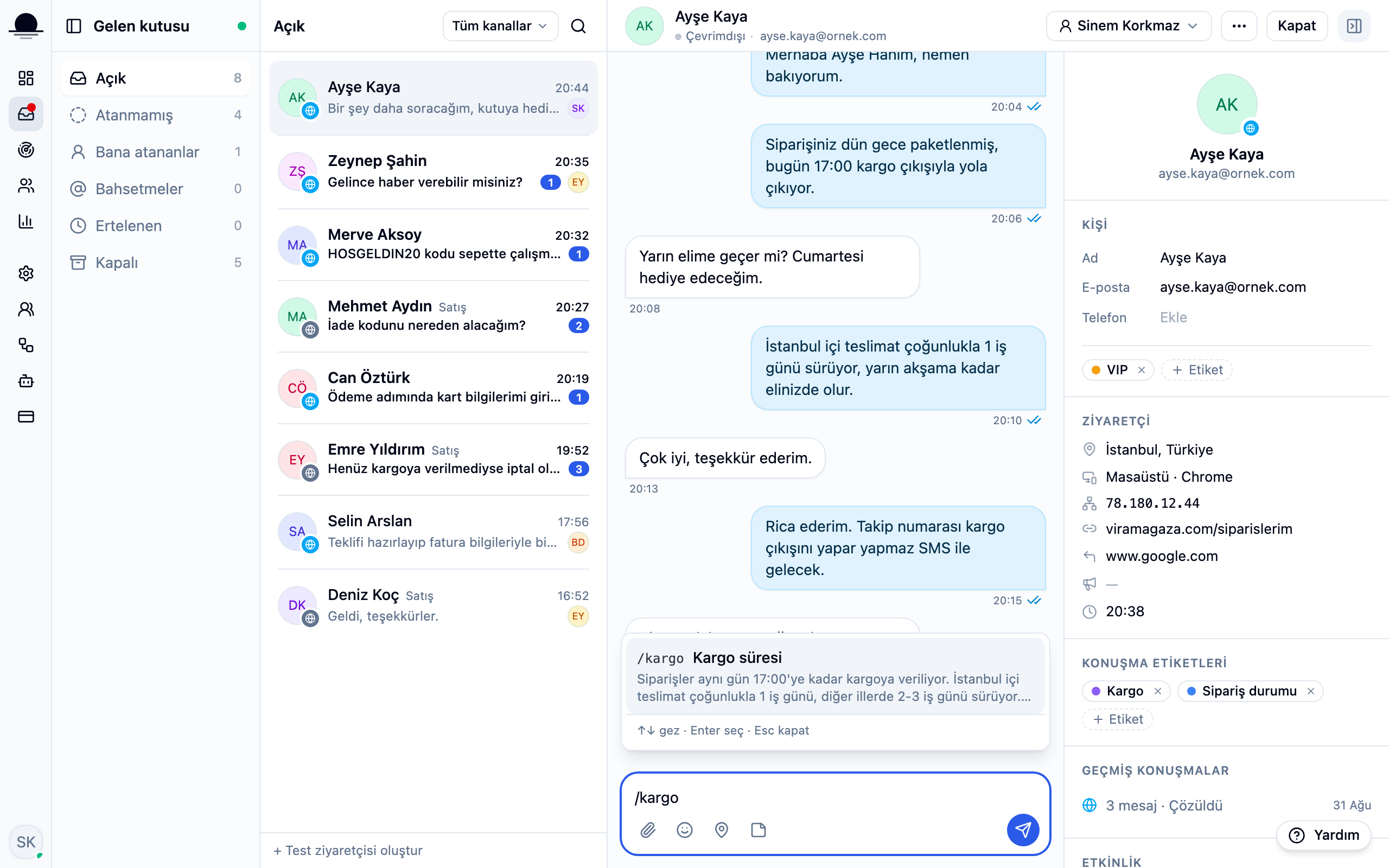
Arrow keys move through the list, Enter picks, Esc closes it. No reaching for the mouse.
Send it, or adjust it for this customer
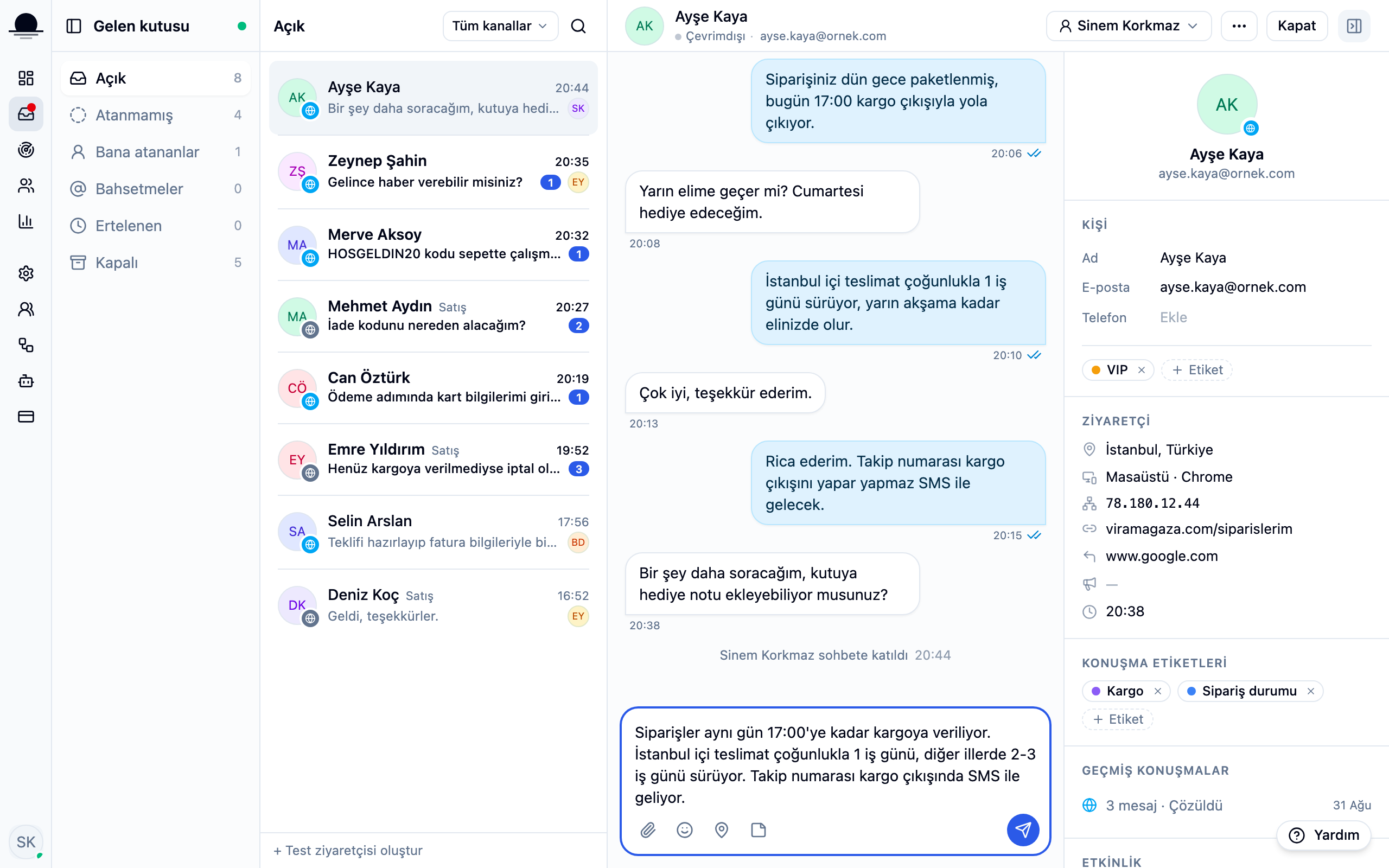
The text drops into the box with the cursor at the end. Send it as it stands, or add the person's name and change a sentence first. The usage counter goes up when the reply is sent.
Frequently asked
Related guides
No account yet?
The free plan covers 2 users and 200 conversations a month. No credit card.