Identity verification
Introduce a signed-in customer to the widget
Identify the person signed in to your site with a token your server signs. Name and email show as verified in the panel, and the same person writing from another device merges into one record.
Before you start
- Your own sign-in system on the site
- Someone who can write server-side code
- Admin access in the panel
Steps
Generate a key on the Install tab
The Identity verification section sits at the bottom of the Install tab in site settings. Generate key hands you a secret shown only once; you will sign your tokens with it.
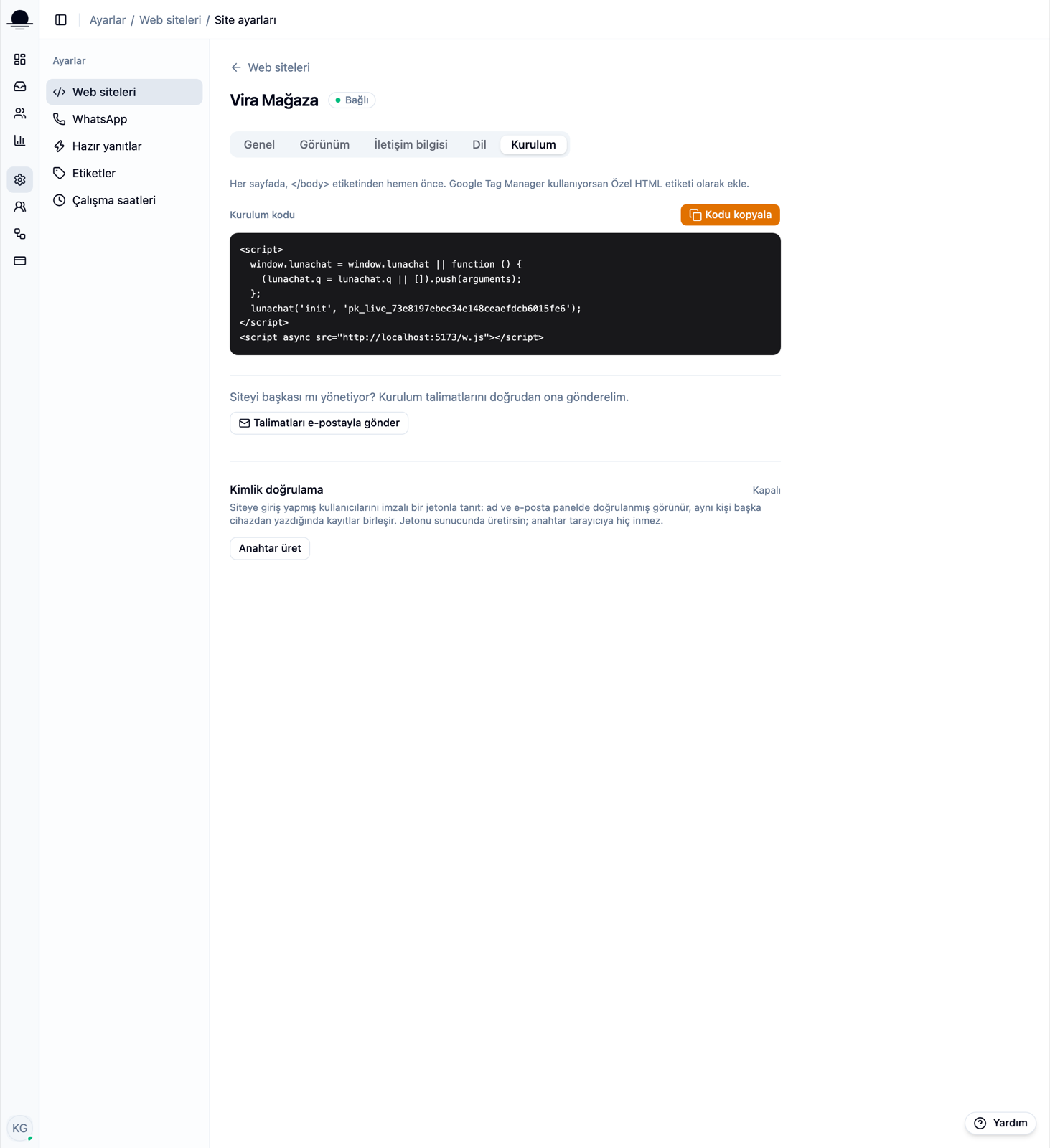
Keep the key in your server's environment. A key that reaches the browser means anyone can appear as anyone.
Sign the token on your server
Issue a JWT signed with HS256 for the signed-in user.
subis required: the user's id in your system.name,emailandattrsare optional, andexpkeeps the token short-lived.Mint the token on each page load and keep the lifetime short. An hour-long token should not outlive the user's sign-out by an hour.
Pass it with
identifyon the pagelunachat('identify', token)hands the identity to the widget. The server verifies the token and writes the name and email onto the contact as verified, where the panel shows them with a check.Call
shutdownon sign-outWhen the user signs out of your site,
lunachat('shutdown')clears the visitor token and removes the widget. On a shared computer this call is not optional: without it, the next person to sign in on that browser sees the previous one's chat history.
Frequently asked
Related guides
No account yet?
The free plan covers 2 users and 200 conversations a month. No credit card.