Working hours
Set your working hours
The schedule decides two things at once: outside your hours a visitor gets a contact form instead of a chat, and nobody's phone gets a notification.
Before you start
- Admin access in the panel
Steps
Open Working hours under Settings
With no schedule set, the workspace counts as always open. That is why the screen opens on a choice rather than an empty form: either you are always open, or you set a schedule.
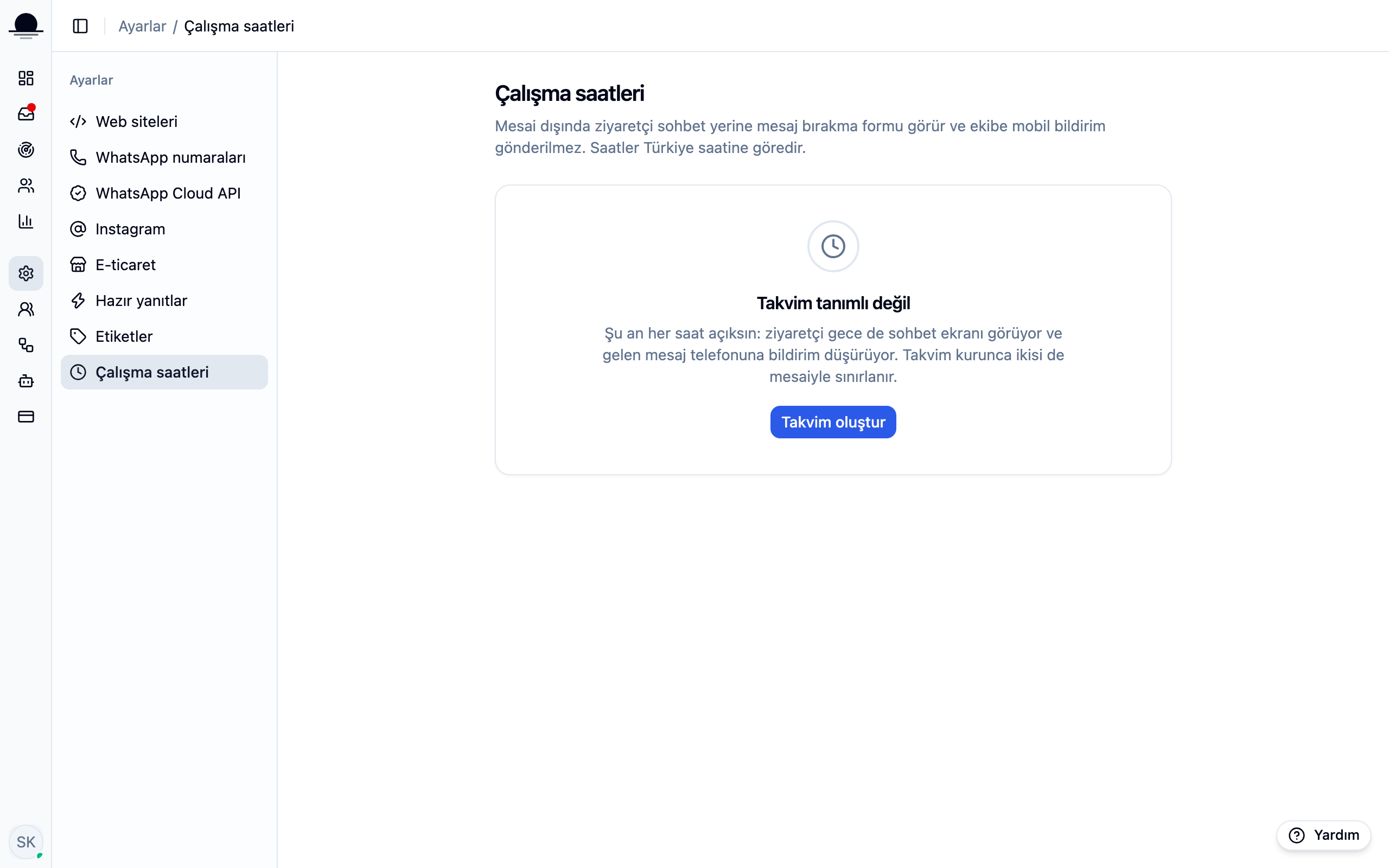
Set the hours for each day
Switch off the days you are closed. Hours run on Turkish time, and a visitor is judged against your hours regardless of where they are looking from.
Know what happens out of hours
When nobody is available the chat box turns into a contact form, what the visitor writes still lands in your inbox, and your answer reaches them by email. Automation flows also stay quiet outside working hours by default.
Write a separate out-of-hours greeting for the widget. One sentence saying when you will be back takes most of the sting out of an unanswered message.
Frequently asked
Related guides
No account yet?
The free plan covers 2 users and 200 conversations a month. No credit card.