Satisfaction survey
Turn on the post-chat satisfaction survey
When a conversation closes the visitor gets one question: one of five faces, with an optional comment. The result shows up in Reports as an average and a response rate, and on the conversation itself as a badge.
Before you start
- A chat widget installed on your site
- An owner account that can open the site settings
Steps
Turn the survey on
Settings → Websites → pick your site → Satisfaction tab. The switch starts off; from the moment you turn it on, every web chat that closes gets the question. You do not write the wording yourself, it is asked in the visitor's language.
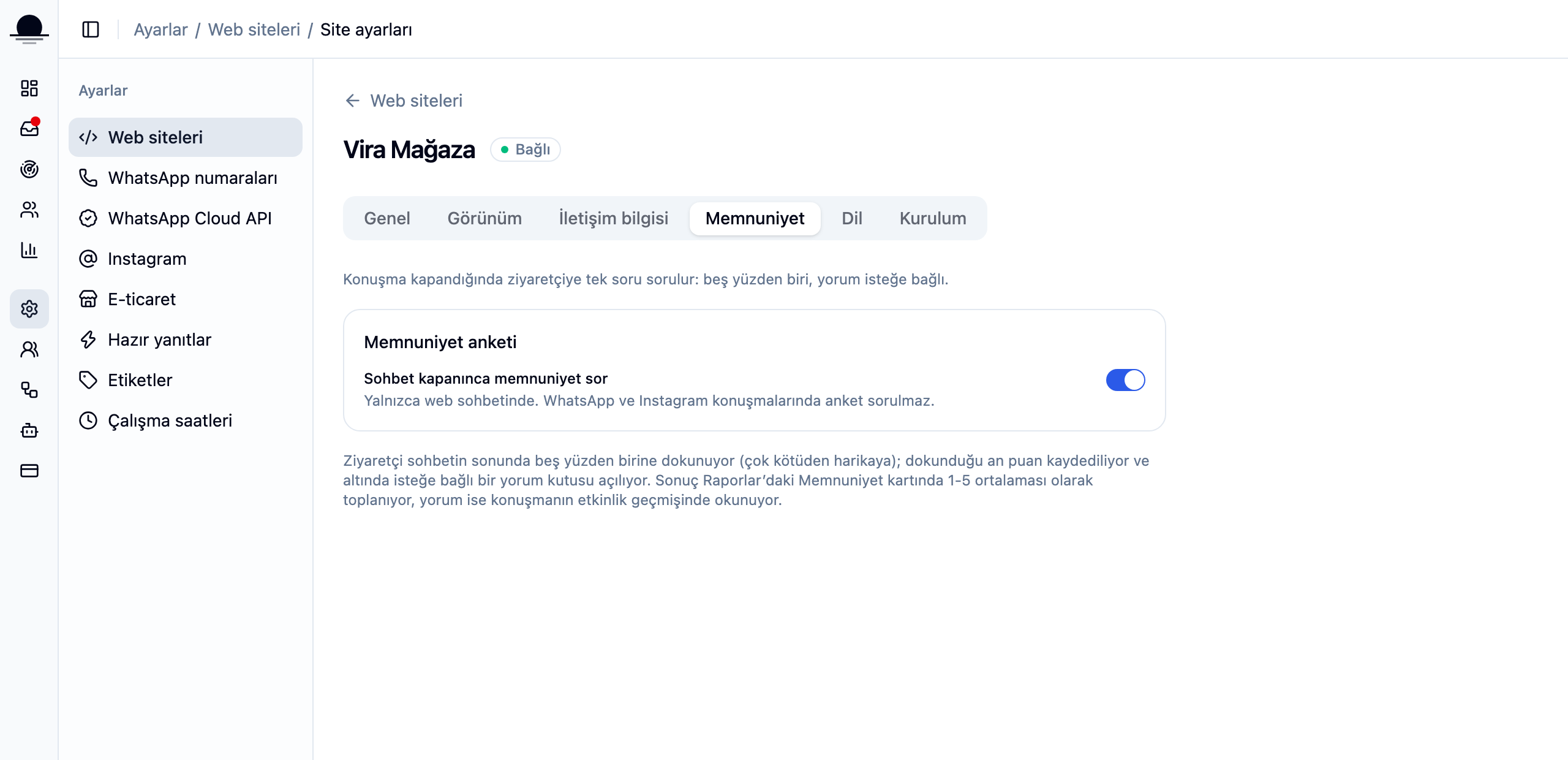
The switch is per site. With two sites you turn it on separately for each; no survey is sent on WhatsApp or Instagram conversations.
What the visitor sees
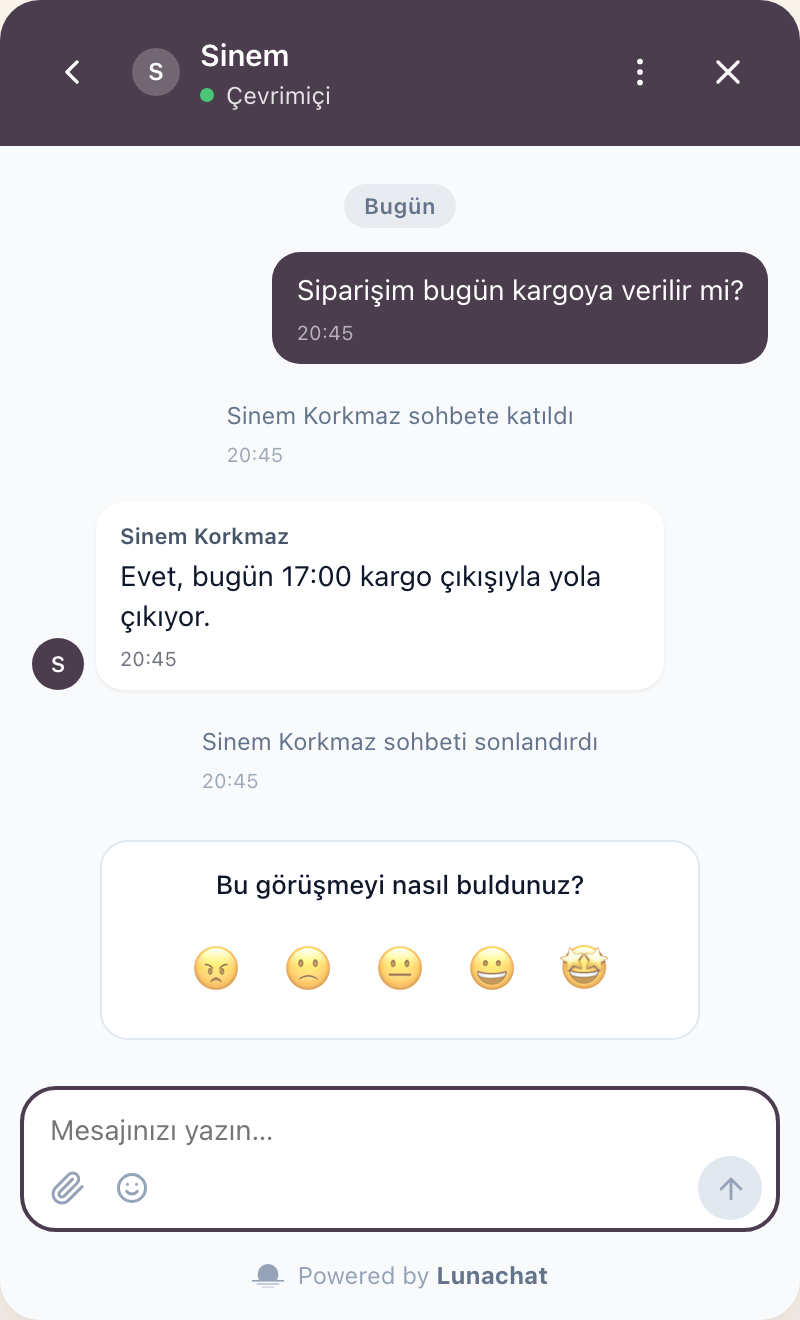
The moment an agent closes the conversation, a card appears at the end of the chat: "How was this conversation?" and five faces. The card is not a message, so it does not add a line waiting for a reply in your inbox. Hovering a face shows what it means: terrible, bad, okay, good, amazing.
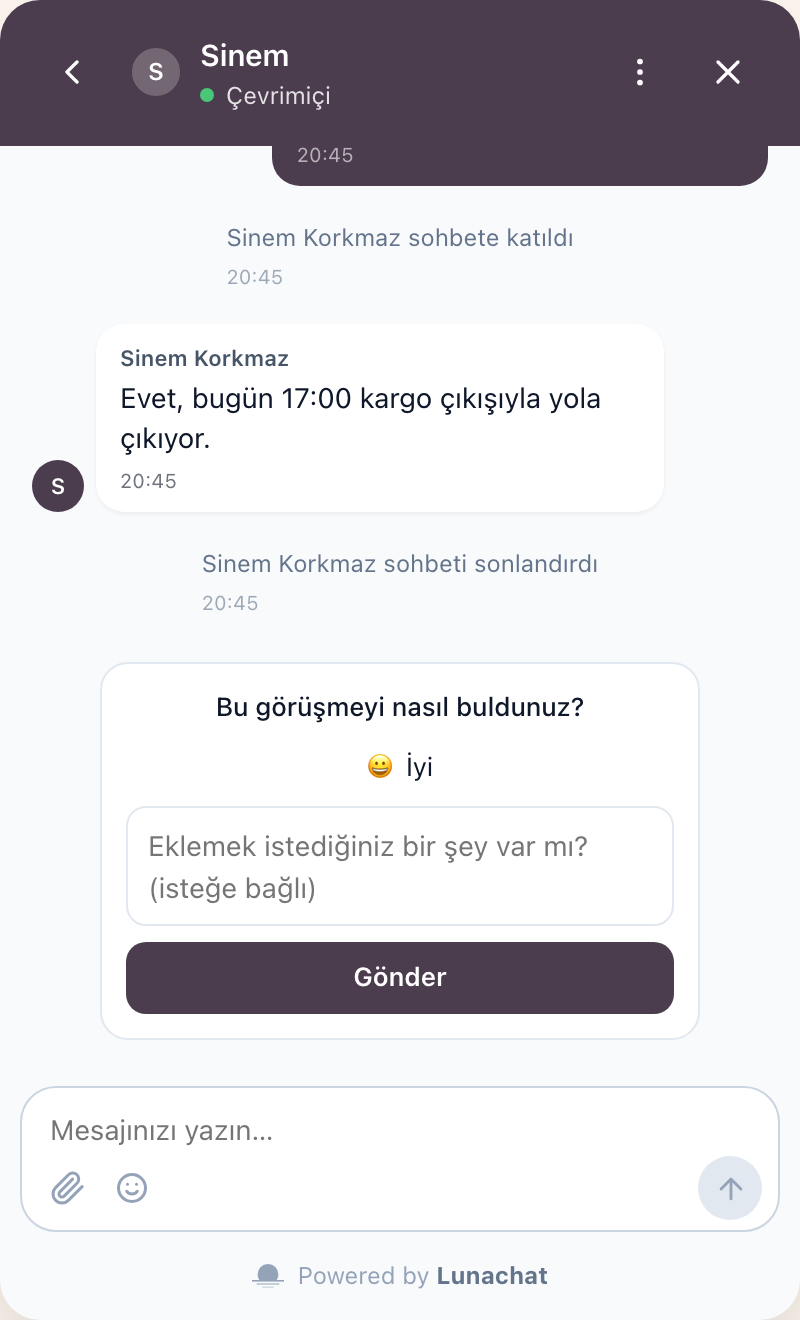
The score saves on the tap, the comment is optional
The score is recorded the moment the visitor taps a face; it counts even if they never write anything in the box that opens below. If they do write, the comment is saved too. A visitor who closes the tab and comes back still sees the survey, or the thank-you line if they already answered.
Read the result in Reports
The Satisfaction card in Reports says three things: the average score, the response rate and how the scores are spread. The team table gains a column too, with each agent's average next to the number of answers it came from.
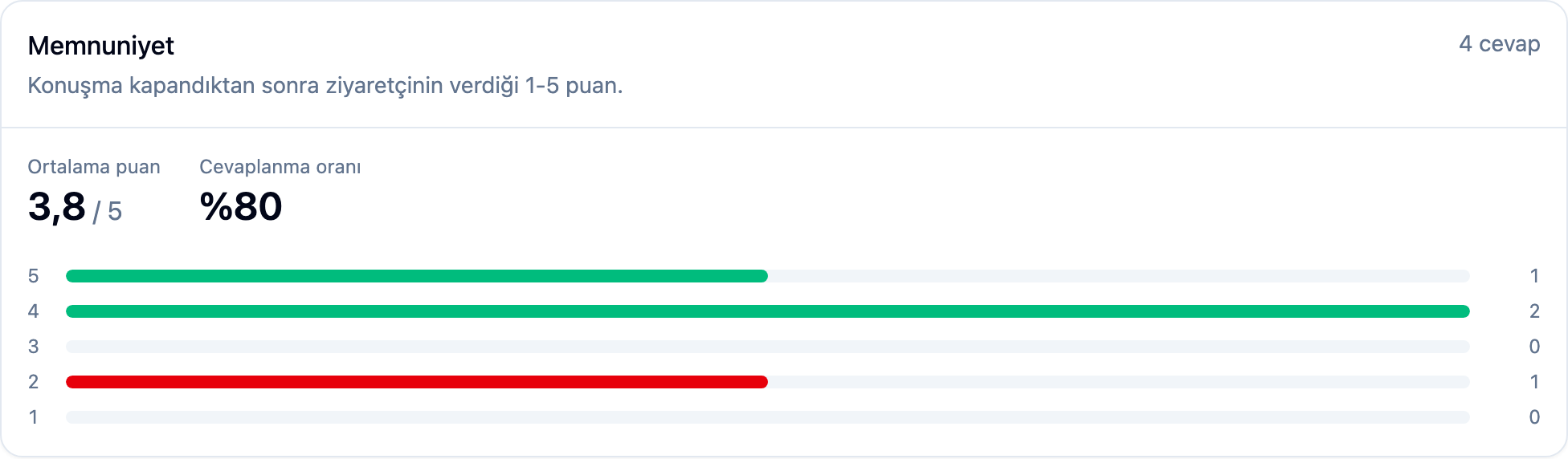
Read the response rate before the average. A 2 from three people and a 2 from a hundred are not the same statement.
See the score on the conversation
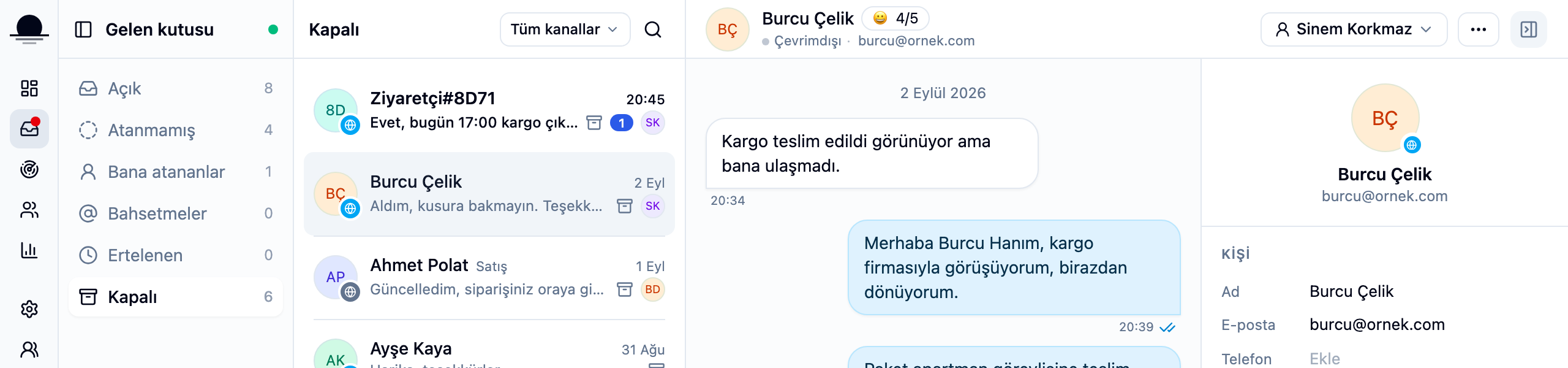
Open a rated conversation in the inbox and a badge sits next to the contact's name: the face the visitor tapped and a number like 4/5. If they left a comment, hover the badge to read it; the same comment stays in the conversation activity.
Frequently asked
Related guides
No account yet?
The free plan covers 2 users and 200 conversations a month. No credit card.