Widget appearance
Set the look of the chat box
Colour, the corner it sits in and the greeting all come from the panel. Changes take effect on the visitor's next load, with no new code on your site.
Before you start
- A site registered in the panel with the snippet in place
Steps
Open the Appearance tab in site settings
Under Settings → Websites, open your site and switch to Appearance. Enter your brand colour as a hex code or pick a preset, and choose whether the box sits in the bottom right or the bottom left.
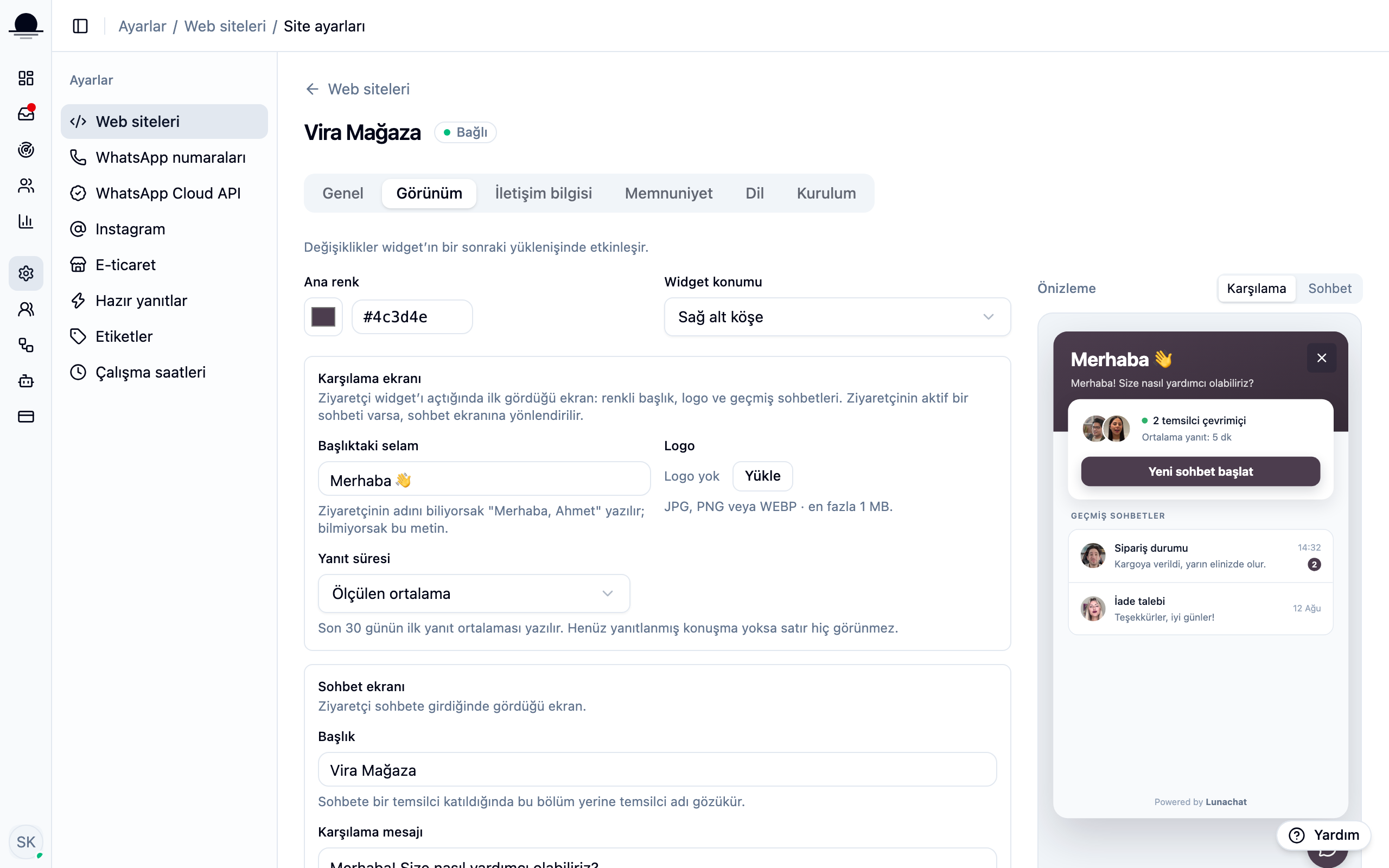
With a dark brand colour, check that the icon on the button still reads. Very light shades swallow it.
Write the greeting
This is the first line a visitor sees when the box opens. A short, inviting sentence is what gets someone who does not know what to ask to write anyway.
Write a separate out-of-hours line
With working hours set, the box turns into a contact form when nobody is available. The sentence shown then is written separately, and saying when you will be back takes most of the sting out of the wait.
Open your site and look
Changes apply the moment you save; no new code is needed. Open your site in a fresh tab to see the box. If the old look persists, clear the browser cache.
Frequently asked
Related guides
No account yet?
The free plan covers 2 users and 200 conversations a month. No credit card.